WordPress plugin
Brave Pro
Brave Pro is the paid edition of Brave’s visual drag-and-drop popup builder for WordPress. Arrange and personalize opt-in forms, surveys, announcements, sticky components, sidebars, modals, lightboxes, and slide-ins without coding.
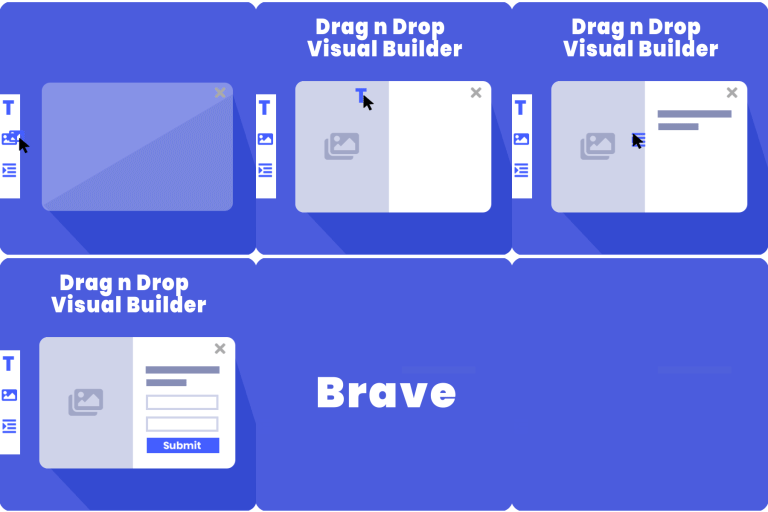
Brave Pro is the paid edition of Brave’s visual drag-and-drop popup builder for WordPress. Arrange and personalize opt-in forms, surveys, announcements, sticky components, sidebars, modals, lightboxes, and slide-ins without coding.
Link popup steps to visitor choices
Create unlimited popup steps and connect them into a visitor flow. A selection can lead to a different form, and a completed flow can display a custom thank-you step. You can also add an unobtrusive ribbon with a prompt such as “Contact Us” or “Subscribe”; clicking it opens the related popup.
Build forms and route submissions
The Form Element supports unlimited fields and multi-step forms for surveys, polls, contact forms, feedback, and newsletter opt-ins. After submission, you can send an automatic email reply or offer a file or ebook download. Zapier and Integromat integrations can send form data to more than 1,500 apps.
Connect opt-in forms to supported newsletter services, including Mailchimp, Mailjet, MailPoet, SendGrid, MailerLite, HubSpot, ActiveCampaign, AWeber, ConvertKit, Constant Contact, Campaign Monitor, GetResponse, Ontraport, SendPulse, Moosend, Zapier, Klaviyo, FluentCRM, Sendy, OmniSend, MailWizz, and Mailster, as well as other services listed by Brave.
Combine content and media in the editor
Brave Pro adds nine elements to the builder, including videos, countdown timers, animated stickers, WordPress Posts, dynamic content, WooCommerce single products, and signup or login elements. Add pictures from Pixabay, animated stickers from Giphy, free icons, and videos from Pixabay directly in the editor.
Choose from 100 presets, or import and export presets. Use the Code element to add shortcodes or custom code. These settings let you combine text, imagery, forms, products, and calls to action in one layout.
Set show rules and track activity
Choose who sees a popup, where it appears, and when it is shown. Advanced display options include exit intent, form submission, and scroll; targeting can use device, visitor role, or traffic source. Frequency options limit repeat displays. You can styling desktop and mobile versions separately and apply animations to individual elements or popup openings.
When a visitor completes a popup goal, Brave Pro can send a real-time email, SMS, or push notification. Analytics report views, clicks, and form submissions, and Google Analytics integration can send tracking events for clicks and submissions.
Start a popup
After adding Brave to WordPress, open the popup builder and choose a popup or widget type. Arrange elements in the visual editor, then configure steps, forms, integrations, targeting, and frequency rules before publishing.