WordPress plugin
Conditional Fields Pro
Conditional Fields Pro lets Elementor forms respond to the values users enter. Set conditions from field IDs, comparison operators, and values, then use the results to control form fields, submit buttons, or actions after submission.
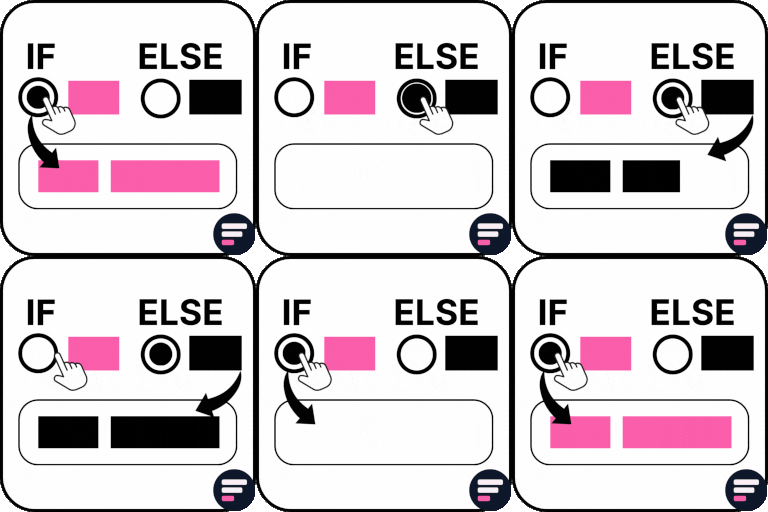
Conditional Fields Pro lets Elementor forms respond to the values users enter. Set conditions from field IDs, comparison operators, and values, then use the results to control form fields, submit buttons, or actions after submission.
It works with Elementor Pro forms and Hello Plus form widgets. The Hello Plus Form Lite widget can also be used with Elementor Free.
Control fields and buttons
When a condition matches, a field can be shown or hidden, or enabled or disabled. Submit-button rules can display, hide, enable, or disable the button based on form inputs. For example, a rule can disable submission when a textarea contains restricted words, which can help address a form-spam scenario.
Conditions can use text, textarea, email, telephone, URL, radio, select, number, checkbox, file upload, and HTML fields. A selected enquiry type, for instance, can determine whether a related follow-up field appears.
Compare values and combine conditions
Compare field values with operators such as equals, not equals, greater than, less than, greater than or equal to, less than or equal to, contains, does not contain, starts with, ends with, is empty, and is not empty. When a rule has multiple conditions, AND logic requires every condition to match; OR logic applies the action when any condition matches.
Choose actions after submission
- Redirects: Send users to different URLs according to the conditions matched in their answers.
- Emails: Create multiple email templates and send different messages to visitor types based on submitted values.
- Mailchimp: Apply conditional logic to Mailchimp actions in the form process.
Set up and check each path
Open the relevant Elementor form and define conditions using the IDs and values of the fields that should control each behavior. Choose a comparison operator, then choose AND or OR logic when combining conditions. After saving the rules, preview the form and check each relevant response path, including field visibility, button behavior, redirects, email templates, and Mailchimp actions.