WordPress plugin
Float Menu Pro
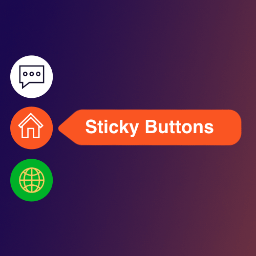
Float Menu Pro extends floating menus for WordPress websites. Use a menu to keep navigation, contact and support links, social profiles, account pages, promotions, or calls to action within reach. Menus can also direct visitors to sections of a long page, Help Center resources, FAQs, support tickets, or membership pages.
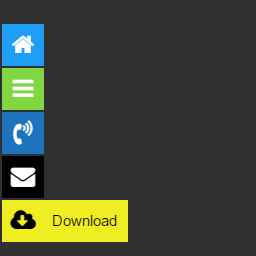
Keep menu controls in view as users scroll
Float Menu Pro extends floating menus for WordPress websites. Use a menu to keep navigation, contact and support links, social profiles, account pages, promotions, or calls to action within reach. Menus can also direct visitors to sections of a long page, Help Center resources, FAQs, support tickets, or membership pages.
Configure menu items and labels
Create submenus with a single submenu level, keep labels open, and adjust vertical alignment. Extra text and label font settings let you add descriptions to menu items. You can upload custom icons and configure their rotation, flipping, and other icon settings.
Choose what each link does
Alongside standard links, menu items can translate a page with one click or share content through services such as Facebook and Twitter. Other actions include navigating to the next or previous post, forcing file downloads, scrolling smoothly to page sections, moving to the top or bottom, printing the current page, and integrating search.
Set show conditions
Rules can show or hide a menu based on scrolling, visitor roles, language, schedule, URL parameters, or referrer URL. Use role permissions to restrict access, configure menus by language, or set an availability period for a campaign. URL and referrer conditions can limit display to particular pages or visitors arriving from a specified source. Browser compatibility control can hide menus for outdated browsers.
Track interactions and open popups
Google Analytics tracking entries menu interactions and clicks. The built-in popup system can open a popup when a user clicks a menu entry, connecting a floating control with an announcement, offer, or other website interaction.
Install and configure
Install Float Menu Pro on the WordPress site and open its menu settings. Create a menu, choose its structure and position, then add links or actions. Configure icons, labels, display rules, and tracking as needed, including language, schedule, URL, referrer, and user-role conditions. Test the menu during setup and adjust its behavior for the devices and pages where it should appear.