WordPress plugin
Image Hotspot Pro
Image Hotspot Pro connects points on WordPress pictures, maps, and video content to related information. Visitors can hover over or click a marker to open a tooltip or pop-up with text, images, videos, or links. YouTube and Vimeo videos can appear directly on your website.
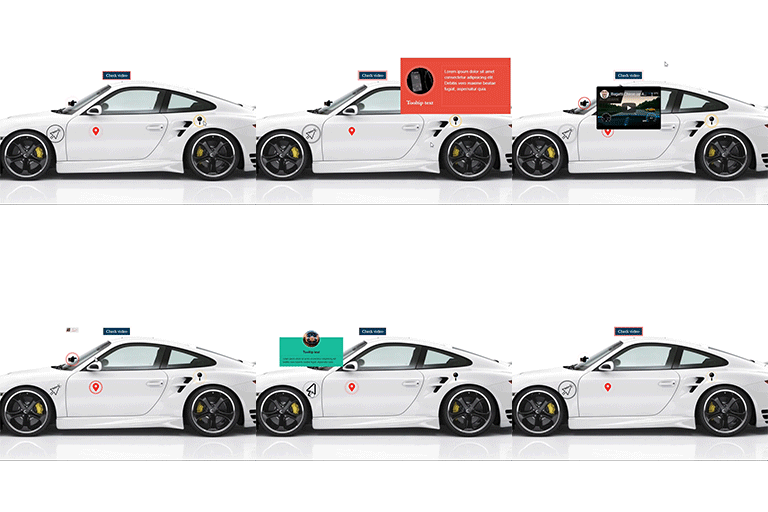
Image Hotspot Pro connects points on WordPress pictures, maps, and video content to related information. Visitors can hover over or click a marker to open a tooltip or pop-up with text, images, videos, or links. YouTube and Vimeo videos can appear directly on your website.
Use annotations to identify product parts, label map locations, explain a diagram, or add context to an infographic. Markers can also turn a visual into a content exploration activity or interactive assessment.
Choose markers and annotation content
Each hotspot can use a Font Awesome icon, a custom image or icon, or a text label. The built-in Font Awesome library includes more than 1,600 icons. Icon controls include color, hover color, size, and an optional hover icon. Custom image or icon markers can have their own size and optional hover image or icon. Text markers have font size, font color, and background color controls.
Attach text, images, videos, or links to a marker. Tooltip display settings include built-in templates, embedded code, and custom code; custom templates can use HTML and CSS. Link content can open in a new tab. Markers can be repositioned by dragging, edited, or removed.
Display and place image maps
Choose whether a tooltip opens on hover or click, and adjust its font size, colors, and background. The plugin supports posts, pages, widgets, themes, and page builders. Add image maps with unlimited shortcodes, use multiple instances on a page, and apply custom CSS for further styling. The responsive layout resizes images, videos, titles, and descriptions for mobile devices and tablets.
Set up a hotspot
- Install and activate Image Hotspot Pro in WordPress.
- Create a hotspot layout and add the image or visual to annotate.
- Place markers using icons, custom images, or text.
- Set marker styling, add tooltip content, and pick hover or click behavior.
- Place the layout in a post, page, widget, theme area, or page-builder layout with a shortcode.
Use custom CSS when you need additional presentation adjustments.