WordPress plugin
PublishPress Blocks Pro
PublishPress Blocks Pro extends the WordPress block editor with extra blocks and utilities for shaping content and managing editorial access. Block Permissions determine which visitor roles can add selected blocks. Block Controls determine when and where blocks appear to visitors.

PublishPress Blocks Pro extends the WordPress block editor with extra blocks and utilities for shaping content and managing editorial access. Block Permissions determine which visitor roles can add selected blocks. Block Controls determine when and where blocks appear to visitors.
Blocks for pages, posts, and products
The Pro edition adds blocks for specific content needs:
- Countdown: Create a customizable countdown to an event or scheduled occasion.
- Feature List: List entries included with a product or service.
- Pricing Table: Present purchase or subscription options in a structured layout.
- Google Fonts: Use Google fonts with selected core blocks, including paragraph and heading blocks.
The wider PublishPress Blocks collection includes more than 20 additional blocks, such as accordions, galleries, sliders, tabs, maps, tables, recent posts, buttons, columns, contact forms, images, and videos. Its WooCommerce product block has Grid and Slider views.
Choose how content is displayed
Use the Content Display block to arrange posts, pages, and other content types in Grid, Frontpage, List, Newspaper, Masonry, or Slider layouts. Filter content by author, category, or tag, and pick details such as publication date, updated date, images, authors, excerpts, intro text, and comments.
Manage access and visibility
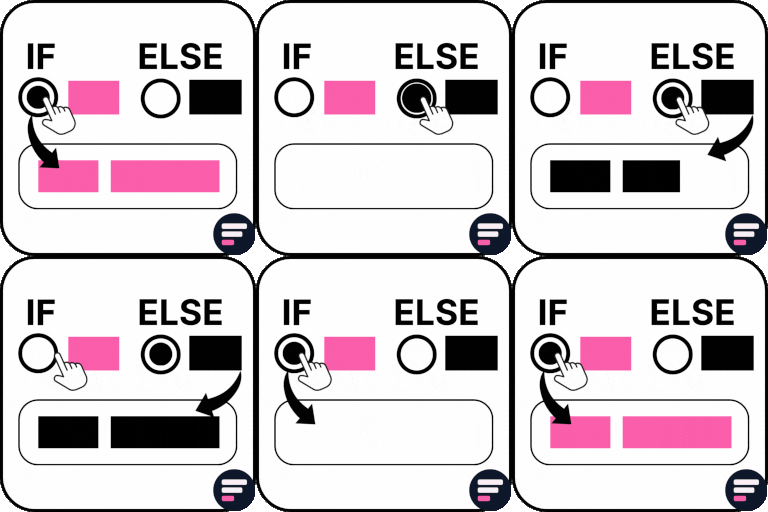
Block Permissions let you choose which roles can use selected blocks, including default WordPress blocks. Block Controls set conditions for showing or hiding blocks. Depending on the condition, visibility can be based on a schedule, user roles, device width or type, browser, operating system, cookies, user or post metadata, query strings, capabilities, term archives, or specific pages.
Reuse blocks across your website
Create named block styles with custom CSS so editors can apply them while editing. Block Usage scans website content to display where blocks appear. The Reusable Blocks screen offers access to edit reusable content, and Auto-Insert Blocks can place blocks in locations within posts.
Install and start editing
Install PublishPress Blocks Pro on a WordPress site, then open a post or page in the block editor. Add an available block and configure its content, styling, permissions, or visibility conditions. Use the management screens to review block usage, edit reusable blocks, define styles, and set automatic insertion options.
The Pro edition upgrades the free PublishPress Blocks add-on with additional features and faster support. If you disable the plugin, its blocks revert to regular HTML.